TagField
The <TagField> component allows users to select multiple options from a dropdown list. Selected items are displayed as removable tags directly inside the input area, giving users a clear overview of their choices at a glance. The component includes a built-in search field for quickly filtering through large option sets.
<TagField> is ideal for scenarios where users need to pick several items from a predefined set, such as assigning categories, tagging content, or selecting multiple preferences. Unlike a standard multi-select dropdown, the tag-based display provides immediate visual feedback and makes it easy to add or remove individual selections.
The component is built on react-aria, providing full keyboard navigation, screen reader support, and accessible interactions out of the box.
Anatomy
A <TagField> consists of a label, a trigger area with tags and an add button, and a popover containing a search input and an options list.
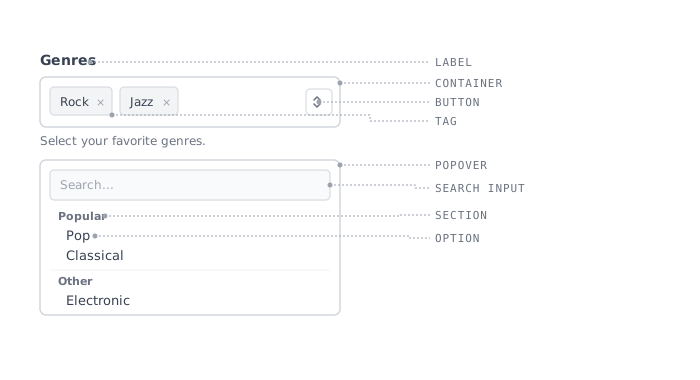
Label: Descriptive text guiding the user on what to select.
Container: The container area that displays selected tags and the button.
Tag: A removable chip representing a selected item. Users can click the remove icon to deselect.
Button: An icon button that opens the dropdown popover to add more selections.
Search input: A text field inside the popover that filters the available options as the user types.
Popover: The overlay container holding the search input and options list.
Section: A group of related options with a header label, used to organize options into categories.
Option: An individual selectable item in the dropdown list.
Appearance
The appearance of a component can be customized using the variant and size props. These props adjust the visual style and dimensions of the component, available values are based on the active theme.
| Property | Type | Description |
|---|---|---|
variant | - | The available variants of this component. |
size | - | The available sizes of this component. |
Usage
The <TagField> works best when users need to select multiple items from a list of options (10+) and want to see their selections displayed compactly as tags. It combines filtering (typing to narrow down options) with visible selection feedback, saving space compared to checkboxes.
Organizing options into sections
When the list of options becomes large or covers distinct categories, grouping them into sections helps users find what they are looking for. Use the <TagField.Section> component to wrap related options, providing a header for each group to add structure and context.
Preventing selection of specific options
In some cases, certain options should be visible but not selectable. For example, an option may be temporarily unavailable or restricted based on the user's permissions. Use the disabledKeys prop to mark specific options as non-interactive while keeping them visible in the list.
Keep option text concise
Option labels should be short and scannable so users can quickly identify the items they need. Long or overly detailed labels slow down the selection process, especially when users are filtering by typing in the search field.
Use short, recognizable option labels like "Rock", "Jazz", or "Electronic".
Don't use long descriptions as option labels, such as "Rock and Roll (including classic and modern sub-genres)".
Labeling
For general guidance on labels, placeholders, and help text, refer to the Form Fields foundation page.
Accessibility
The <TagField> supports full keyboard navigation through all its interactive parts.
| Key | Description |
|---|---|
Tab | Moves focus between the trigger, tags, add button, and other focusable elements. |
Enter | Opens the popover when the trigger or add button is focused. Selects or deselects an option when focused in the list. |
Space | Opens the popover when the trigger or add button is focused. |
Arrow Up / Arrow Down | Navigates between options in the dropdown list. |
Arrow Left / Arrow Right | Navigates between tags in the trigger area. |
Escape | Closes the popover and returns focus to the trigger. |
Backspace | Removes a tag when it is focused. |
When the popover opens, the search input receives focus automatically, allowing users to immediately start filtering options by typing.
Props
TagField
allowsEmptyCollection?boolean;
aria-describedby?string;
aria-details?string;
aria-label?string;
aria-labelledby?string;
autoComplete?string;
autoFocus?boolean;
children?ReactNode | ((item: T) => ReactNode);
defaultOpen?boolean;
defaultSelectedKey?Key;
defaultValue?readonly Key[]description?string;
dir?string;
disabled?boolean;
"false"disabledKeys?Iterable<Key>;
emptyState?ReactNode;
error?boolean;
"false"errorMessage?string | ((validation: ValidationResult) => string);
excludeFromTabOrder?boolean;
form?string;
<form> element to associate the input with.
The value of this attribute must be the id of a <form> in the same document.
See MDN.hidden?boolean;
id?string;
inert?boolean;
items?Iterable<T>;
label?ReactNode;
lang?string;
name?string;
onAnimationEnd?AnimationEventHandler<HTMLDivElement>;
onAnimationEndCapture?AnimationEventHandler<HTMLDivElement>;
onAnimationIteration?AnimationEventHandler<HTMLDivElement>;
onAnimationIterationCapture?AnimationEventHandler<HTMLDivElement>;
onAnimationStart?AnimationEventHandler<HTMLDivElement>;
onAnimationStartCapture?AnimationEventHandler<HTMLDivElement>;
onAuxClick?MouseEventHandler<HTMLDivElement>;
onAuxClickCapture?MouseEventHandler<HTMLDivElement>;
onBlur?(e: FocusEvent<Element, Element>) => void;
onChange?(value: Key[]) => void;
onClick?MouseEventHandler<HTMLDivElement>;
onClickCapture?MouseEventHandler<HTMLDivElement>;
onContextMenu?MouseEventHandler<HTMLDivElement>;
onContextMenuCapture?MouseEventHandler<HTMLDivElement>;
onDoubleClick?MouseEventHandler<HTMLDivElement>;
onDoubleClickCapture?MouseEventHandler<HTMLDivElement>;
onFocus?(e: FocusEvent<Element, Element>) => void;
onFocusChange?(isFocused: boolean) => void;
onGotPointerCapture?PointerEventHandler<HTMLDivElement>;
onGotPointerCaptureCapture?PointerEventHandler<HTMLDivElement>;
onKeyDown?(e: KeyboardEvent) => void;
onKeyUp?(e: KeyboardEvent) => void;
onLostPointerCapture?PointerEventHandler<HTMLDivElement>;
onLostPointerCaptureCapture?PointerEventHandler<HTMLDivElement>;
onMouseDown?MouseEventHandler<HTMLDivElement>;
onMouseDownCapture?MouseEventHandler<HTMLDivElement>;
onMouseEnter?MouseEventHandler<HTMLDivElement>;
onMouseLeave?MouseEventHandler<HTMLDivElement>;
onMouseMove?MouseEventHandler<HTMLDivElement>;
onMouseMoveCapture?MouseEventHandler<HTMLDivElement>;
onMouseOut?MouseEventHandler<HTMLDivElement>;
onMouseOutCapture?MouseEventHandler<HTMLDivElement>;
onMouseOver?MouseEventHandler<HTMLDivElement>;
onMouseOverCapture?MouseEventHandler<HTMLDivElement>;
onMouseUp?MouseEventHandler<HTMLDivElement>;
onMouseUpCapture?MouseEventHandler<HTMLDivElement>;
onOpenChange?(isOpen: boolean) => void;
onPointerCancel?PointerEventHandler<HTMLDivElement>;
onPointerCancelCapture?PointerEventHandler<HTMLDivElement>;
onPointerDown?PointerEventHandler<HTMLDivElement>;
onPointerDownCapture?PointerEventHandler<HTMLDivElement>;
onPointerEnter?PointerEventHandler<HTMLDivElement>;
onPointerLeave?PointerEventHandler<HTMLDivElement>;
onPointerMove?PointerEventHandler<HTMLDivElement>;
onPointerMoveCapture?PointerEventHandler<HTMLDivElement>;
onPointerOut?PointerEventHandler<HTMLDivElement>;
onPointerOutCapture?PointerEventHandler<HTMLDivElement>;
onPointerOver?PointerEventHandler<HTMLDivElement>;
onPointerOverCapture?PointerEventHandler<HTMLDivElement>;
onPointerUp?PointerEventHandler<HTMLDivElement>;
onPointerUpCapture?PointerEventHandler<HTMLDivElement>;
onScroll?UIEventHandler<HTMLDivElement>;
onScrollCapture?UIEventHandler<HTMLDivElement>;
onSelectionChange?(key: Key | null) => void;
onTouchCancel?TouchEventHandler<HTMLDivElement>;
onTouchCancelCapture?TouchEventHandler<HTMLDivElement>;
onTouchEnd?TouchEventHandler<HTMLDivElement>;
onTouchEndCapture?TouchEventHandler<HTMLDivElement>;
onTouchMove?TouchEventHandler<HTMLDivElement>;
onTouchMoveCapture?TouchEventHandler<HTMLDivElement>;
onTouchStart?TouchEventHandler<HTMLDivElement>;
onTouchStartCapture?TouchEventHandler<HTMLDivElement>;
onTransitionCancel?TransitionEventHandler<HTMLDivElement>;
onTransitionCancelCapture?TransitionEventHandler<HTMLDivElement>;
onTransitionEnd?TransitionEventHandler<HTMLDivElement>;
onTransitionEndCapture?TransitionEventHandler<HTMLDivElement>;
onTransitionRun?TransitionEventHandler<HTMLDivElement>;
onTransitionRunCapture?TransitionEventHandler<HTMLDivElement>;
onTransitionStart?TransitionEventHandler<HTMLDivElement>;
onTransitionStartCapture?TransitionEventHandler<HTMLDivElement>;
onWheel?WheelEventHandler<HTMLDivElement>;
onWheelCapture?WheelEventHandler<HTMLDivElement>;
open?boolean;
"false"placeholder?string;
ref?Ref<HTMLDivElement>;
ref.current to null
(or call the ref with null if you passed a callback ref).
@see {@link https://react.dev/learn/referencing-values-with-refs#refs-and-the-dom React Docs}render?DOMRenderFunction<"div", SelectRenderProps>;
- You must render the expected element type (e.g. if
<button>is expected, you cannot render an<a>). - Only a single root DOM element can be rendered (no fragments).
- You must pass through props and ref to the underlying DOM element, merging with your own prop as appropriate.
required?boolean;
"false"selectedKey?Key | null;
slot?string | null;
null value indicates that the local props completely override all props received from a parent.translate?"yes" | "no";
validate?(value: Key[]) => true | ValidationError | null;
validationBehavior="native". For realtime validation, use the isInvalid
prop instead.validationBehavior?"native" | "aria";
'native'value?readonly Key[]width?WidthProp;
TagField.Option
aria-label?string;
children?ReactNode;
dir?string;
download?string | boolean;
hidden?boolean;
href?string;
hrefLang?string;
id?Key;
inert?boolean;
isDisabled?boolean;
lang?string;
onAction?() => void;
selectionBehavior prop and the interaction modality.onAnimationEnd?AnimationEventHandler<HTMLDivElement>;
onAnimationEndCapture?AnimationEventHandler<HTMLDivElement>;
onAnimationIteration?AnimationEventHandler<HTMLDivElement>;
onAnimationIterationCapture?AnimationEventHandler<HTMLDivElement>;
onAnimationStart?AnimationEventHandler<HTMLDivElement>;
onAnimationStartCapture?AnimationEventHandler<HTMLDivElement>;
onAuxClick?MouseEventHandler<HTMLDivElement>;
onAuxClickCapture?MouseEventHandler<HTMLDivElement>;
onBlur?(e: FocusEvent<HTMLDivElement, Element>) => void;
onClick?(e: MouseEvent<FocusableElement, MouseEvent>) => void;
onPress instead. onClick is an alias for onPress
provided for compatibility with other libraries. onPress provides
additional event details for non-mouse interactions.onClickCapture?MouseEventHandler<HTMLDivElement>;
onContextMenu?MouseEventHandler<HTMLDivElement>;
onContextMenuCapture?MouseEventHandler<HTMLDivElement>;
onDoubleClick?MouseEventHandler<HTMLDivElement>;
onDoubleClickCapture?MouseEventHandler<HTMLDivElement>;
onFocus?(e: FocusEvent<HTMLDivElement, Element>) => void;
onFocusChange?(isFocused: boolean) => void;
onGotPointerCapture?PointerEventHandler<HTMLDivElement>;
onGotPointerCaptureCapture?PointerEventHandler<HTMLDivElement>;
onHoverChange?(isHovering: boolean) => void;
onHoverEnd?(e: HoverEvent) => void;
onHoverStart?(e: HoverEvent) => void;
onLostPointerCapture?PointerEventHandler<HTMLDivElement>;
onLostPointerCaptureCapture?PointerEventHandler<HTMLDivElement>;
onMouseDown?MouseEventHandler<HTMLDivElement>;
onMouseDownCapture?MouseEventHandler<HTMLDivElement>;
onMouseEnter?MouseEventHandler<HTMLDivElement>;
onMouseLeave?MouseEventHandler<HTMLDivElement>;
onMouseMove?MouseEventHandler<HTMLDivElement>;
onMouseMoveCapture?MouseEventHandler<HTMLDivElement>;
onMouseOut?MouseEventHandler<HTMLDivElement>;
onMouseOutCapture?MouseEventHandler<HTMLDivElement>;
onMouseOver?MouseEventHandler<HTMLDivElement>;
onMouseOverCapture?MouseEventHandler<HTMLDivElement>;
onMouseUp?MouseEventHandler<HTMLDivElement>;
onMouseUpCapture?MouseEventHandler<HTMLDivElement>;
onPointerCancel?PointerEventHandler<HTMLDivElement>;
onPointerCancelCapture?PointerEventHandler<HTMLDivElement>;
onPointerDown?PointerEventHandler<HTMLDivElement>;
onPointerDownCapture?PointerEventHandler<HTMLDivElement>;
onPointerEnter?PointerEventHandler<HTMLDivElement>;
onPointerLeave?PointerEventHandler<HTMLDivElement>;
onPointerMove?PointerEventHandler<HTMLDivElement>;
onPointerMoveCapture?PointerEventHandler<HTMLDivElement>;
onPointerOut?PointerEventHandler<HTMLDivElement>;
onPointerOutCapture?PointerEventHandler<HTMLDivElement>;
onPointerOver?PointerEventHandler<HTMLDivElement>;
onPointerOverCapture?PointerEventHandler<HTMLDivElement>;
onPointerUp?PointerEventHandler<HTMLDivElement>;
onPointerUpCapture?PointerEventHandler<HTMLDivElement>;
onPress?(e: PressEvent) => void;
onPressChange?(isPressed: boolean) => void;
onPressEnd?(e: PressEvent) => void;
onPressStart?(e: PressEvent) => void;
onPressUp?(e: PressEvent) => void;
onScroll?UIEventHandler<HTMLDivElement>;
onScrollCapture?UIEventHandler<HTMLDivElement>;
onTouchCancel?TouchEventHandler<HTMLDivElement>;
onTouchCancelCapture?TouchEventHandler<HTMLDivElement>;
onTouchEnd?TouchEventHandler<HTMLDivElement>;
onTouchEndCapture?TouchEventHandler<HTMLDivElement>;
onTouchMove?TouchEventHandler<HTMLDivElement>;
onTouchMoveCapture?TouchEventHandler<HTMLDivElement>;
onTouchStart?TouchEventHandler<HTMLDivElement>;
onTouchStartCapture?TouchEventHandler<HTMLDivElement>;
onTransitionCancel?TransitionEventHandler<HTMLDivElement>;
onTransitionCancelCapture?TransitionEventHandler<HTMLDivElement>;
onTransitionEnd?TransitionEventHandler<HTMLDivElement>;
onTransitionEndCapture?TransitionEventHandler<HTMLDivElement>;
onTransitionRun?TransitionEventHandler<HTMLDivElement>;
onTransitionRunCapture?TransitionEventHandler<HTMLDivElement>;
onTransitionStart?TransitionEventHandler<HTMLDivElement>;
onTransitionStartCapture?TransitionEventHandler<HTMLDivElement>;
onWheel?WheelEventHandler<HTMLDivElement>;
onWheelCapture?WheelEventHandler<HTMLDivElement>;
ping?string;
referrerPolicy?HTMLAttributeReferrerPolicy;
rel?string;
render?(
props:
| DetailedHTMLProps<LinkWithRequiredHref, HTMLAnchorElement>
| DetailedHTMLProps<HTMLAttributes<HTMLDivElement>, HTMLDivElement>,
renderProps: ListBoxItemRenderProps,
) => ReactElement<...>;
'href' in props in order to tell whether to render an <a> element.
Requirements:
- You must render the expected element type (e.g. if
<a>is expected, you cannot render a<button>). - Only a single root DOM element can be rendered (no fragments).
- You must pass through props and ref to the underlying DOM element, merging with your own prop as appropriate.
routerOptions?undefined;
target?HTMLAttributeAnchorTarget;
textValue?string;
translate?"yes" | "no";
value?object;
TagField.Section
aria-label?string;
childrenReactNode;
dependencies?readonly any[]dir?string;
headerReactNode;
hidden?boolean;
id?Key;
inert?boolean;
items?Iterable<object>;
lang?string;
onAnimationEnd?AnimationEventHandler<HTMLElement>;
onAnimationEndCapture?AnimationEventHandler<HTMLElement>;
onAnimationIteration?AnimationEventHandler<HTMLElement>;
onAnimationIterationCapture?AnimationEventHandler<HTMLElement>;
onAnimationStart?AnimationEventHandler<HTMLElement>;
onAnimationStartCapture?AnimationEventHandler<HTMLElement>;
onAuxClick?MouseEventHandler<HTMLElement>;
onAuxClickCapture?MouseEventHandler<HTMLElement>;
onClick?MouseEventHandler<HTMLElement>;
onClickCapture?MouseEventHandler<HTMLElement>;
onContextMenu?MouseEventHandler<HTMLElement>;
onContextMenuCapture?MouseEventHandler<HTMLElement>;
onDoubleClick?MouseEventHandler<HTMLElement>;
onDoubleClickCapture?MouseEventHandler<HTMLElement>;
onGotPointerCapture?PointerEventHandler<HTMLElement>;
onGotPointerCaptureCapture?PointerEventHandler<HTMLElement>;
onLostPointerCapture?PointerEventHandler<HTMLElement>;
onLostPointerCaptureCapture?PointerEventHandler<HTMLElement>;
onMouseDown?MouseEventHandler<HTMLElement>;
onMouseDownCapture?MouseEventHandler<HTMLElement>;
onMouseEnter?MouseEventHandler<HTMLElement>;
onMouseLeave?MouseEventHandler<HTMLElement>;
onMouseMove?MouseEventHandler<HTMLElement>;
onMouseMoveCapture?MouseEventHandler<HTMLElement>;
onMouseOut?MouseEventHandler<HTMLElement>;
onMouseOutCapture?MouseEventHandler<HTMLElement>;
onMouseOver?MouseEventHandler<HTMLElement>;
onMouseOverCapture?MouseEventHandler<HTMLElement>;
onMouseUp?MouseEventHandler<HTMLElement>;
onMouseUpCapture?MouseEventHandler<HTMLElement>;
onPointerCancel?PointerEventHandler<HTMLElement>;
onPointerCancelCapture?PointerEventHandler<HTMLElement>;
onPointerDown?PointerEventHandler<HTMLElement>;
onPointerDownCapture?PointerEventHandler<HTMLElement>;
onPointerEnter?PointerEventHandler<HTMLElement>;
onPointerLeave?PointerEventHandler<HTMLElement>;
onPointerMove?PointerEventHandler<HTMLElement>;
onPointerMoveCapture?PointerEventHandler<HTMLElement>;
onPointerOut?PointerEventHandler<HTMLElement>;
onPointerOutCapture?PointerEventHandler<HTMLElement>;
onPointerOver?PointerEventHandler<HTMLElement>;
onPointerOverCapture?PointerEventHandler<HTMLElement>;
onPointerUp?PointerEventHandler<HTMLElement>;
onPointerUpCapture?PointerEventHandler<HTMLElement>;
onScroll?UIEventHandler<HTMLElement>;
onScrollCapture?UIEventHandler<HTMLElement>;
onTouchCancel?TouchEventHandler<HTMLElement>;
onTouchCancelCapture?TouchEventHandler<HTMLElement>;
onTouchEnd?TouchEventHandler<HTMLElement>;
onTouchEndCapture?TouchEventHandler<HTMLElement>;
onTouchMove?TouchEventHandler<HTMLElement>;
onTouchMoveCapture?TouchEventHandler<HTMLElement>;
onTouchStart?TouchEventHandler<HTMLElement>;
onTouchStartCapture?TouchEventHandler<HTMLElement>;
onTransitionCancel?TransitionEventHandler<HTMLElement>;
onTransitionCancelCapture?TransitionEventHandler<HTMLElement>;
onTransitionEnd?TransitionEventHandler<HTMLElement>;
onTransitionEndCapture?TransitionEventHandler<HTMLElement>;
onTransitionRun?TransitionEventHandler<HTMLElement>;
onTransitionRunCapture?TransitionEventHandler<HTMLElement>;
onTransitionStart?TransitionEventHandler<HTMLElement>;
onTransitionStartCapture?TransitionEventHandler<HTMLElement>;
onWheel?WheelEventHandler<HTMLElement>;
onWheelCapture?WheelEventHandler<HTMLElement>;
translate?"yes" | "no";
value?object;
Alternative components
- ComboBox: When users need to select a single value from a filterable list, or when they should be able to type a custom value.
- Select: When users need to choose a single option from a dropdown without a search field.
- SelectList: When you need more than just a text label to represent options and want a persistent, visible list.
- Checkbox: When there are fewer than 10 options and all choices should be visible at once without a dropdown.